
How to install Bajori Pro
Download, open, install and start in about two minutes. Watch the four steps below, then try it on your own Windows PC.
Download and install in five steps
Press a step to jump to it, or just watch.
Click Download for Windows on this page. The installer is about 107 MB and saves to your Downloads folder.
Double-click the installer. If Windows shows “Windows protected your PC”, click More info, then Run anyway. This is normal for a new app.
Windows then asks “Do you want to allow this app to make changes to your device?” Click Yes. Setup needs this to install Bajori Pro for all users on the PC.
Choose where to install it (the default folder is fine), then click Install and Finish. It takes about a minute and needs no internet and no account.
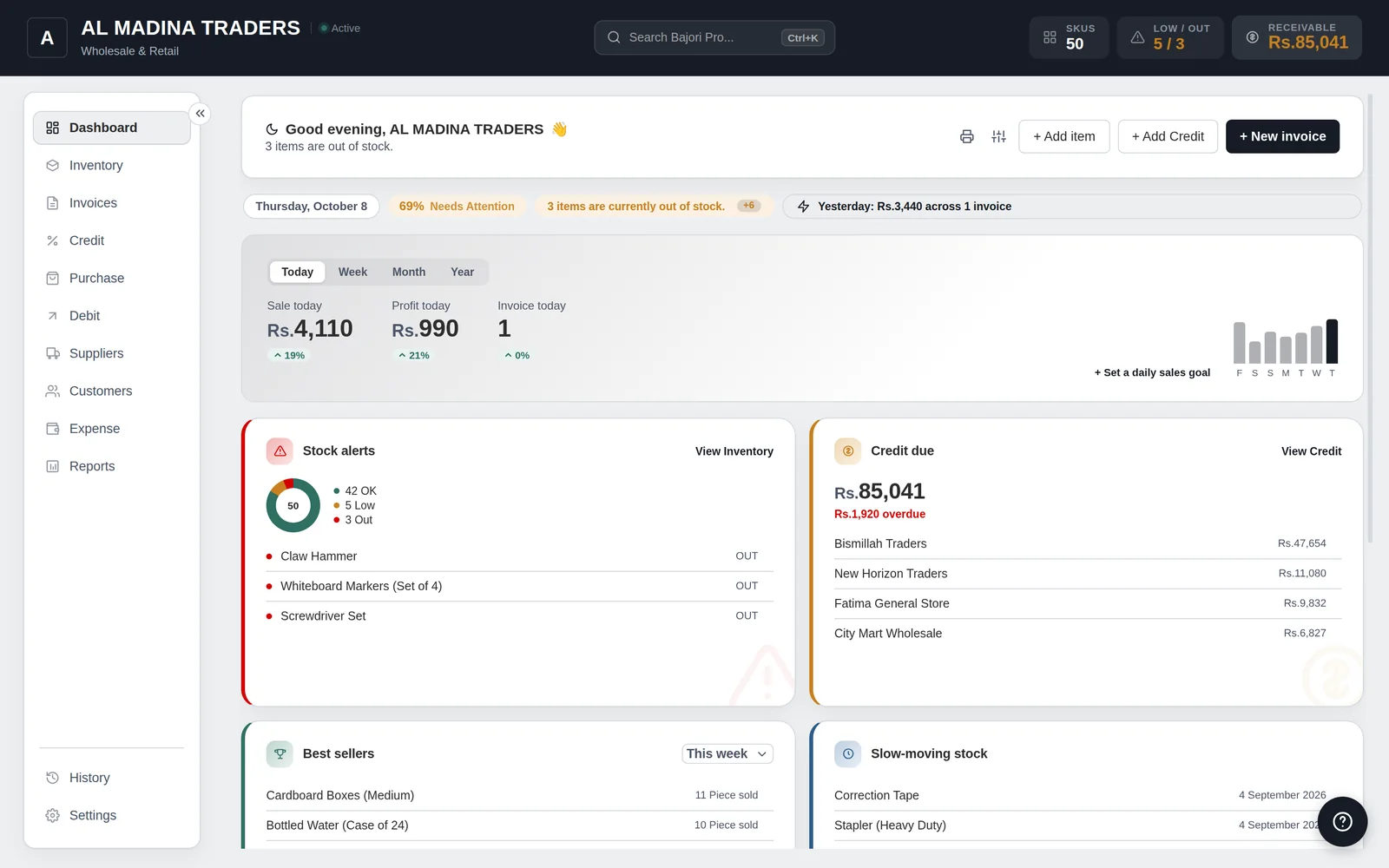
Open Bajori Pro. It starts in demo mode with a sample business, so you can try everything straight away.
Illustration of the steps. Your Windows screens may look slightly different.
The steps in writing
- Download. Click Download for Windows on the download page. The file is about 107 MB.
- Open the installer. Double-click it in your Downloads folder. If Windows shows “Windows protected your PC”, click More info, then Run anyway.
- Allow. Windows asks “Do you want to allow this app to make changes to your device?” Click Yes. The installer needs this to install Bajori Pro for all users in Program Files.
- Install. Choose the install location (the default is fine), click Install, then Finish.
- Start. Open Bajori Pro. It starts in demo mode with a sample business. Create an invoice, record a credit payment and open the reports.
- Buy when ready. Open Settings → About → Activate and choose Request my license online. See how to buy.
Installing: common questions
Do I need internet to install or use Bajori Pro?
You need internet only to download the installer. After that, installing and using Bajori Pro needs no internet connection and no account.
Windows says “Windows protected your PC”. Is the installer safe?
Bajori Pro installers are new and are not yet digitally signed, so Windows SmartScreen can show this warning the first time. Click More info, then Run anyway. To check the file first, compare its SHA-256 checksum on the download page with the one Windows shows for your downloaded file, or ask us on WhatsApp.
Which Windows versions work?
Windows 10 or 11, 64-bit. Bajori Pro is a Windows desktop app, with no Mac, phone or web version.
Windows asks if I want to allow the app to make changes. Is that normal?
Yes. Bajori Pro installs for all users on the PC, in the Program Files folder, so Windows shows a permission prompt (User Account Control). Because the installer is new and not yet digitally signed, it says the publisher is unknown. Click Yes to continue. Clicking No cancels the installation.
Can I choose where to install it?
Yes. Setup shows a Choose Install Location step. The default folder is fine for most people, or click Browse to pick another folder.
Where is my data stored?
On your own computer. Bajori Pro never uploads your records anywhere.
How do I uninstall it?
Open Windows Settings, go to Apps, find Bajori Pro and choose Uninstall. Your data is kept unless you remove it yourself.
Ready to try it?
Download the free demo and explore a complete sample business on your own computer.